

User Guide: How to Use Munda Manager
Welcome to the Munda Manager user guide! This comprehensive guide will help you make the most of all the features available in Munda Manager. Whether you're creating your first gang, managing a campaign, or exploring advanced mechanics, you'll find detailed instructions and helpful tips below.
Installing the Mobile App#
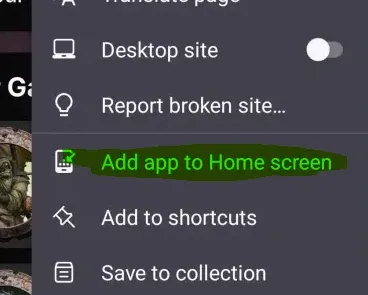
On many types of phones you have this option in the website's hamburger menu (the three horizontal lines) located at the top right of the page. Using it will set up a website with embedded access which behaves just like an App on your phone.
Gangs#
Gang Card Presentation#
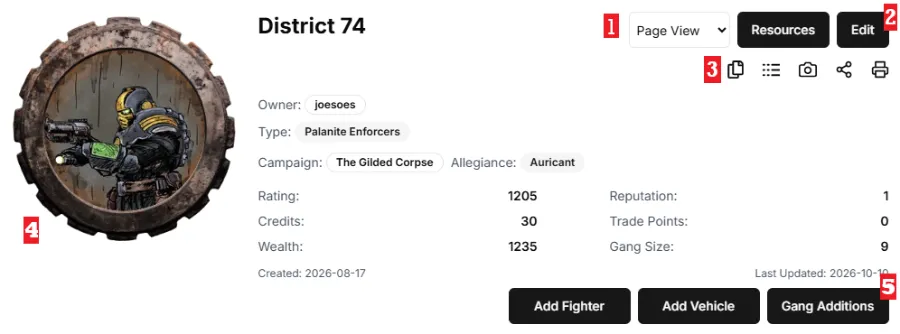
View: You can change how Fighter cards are displayed by changing the View. This allows you to have a grid of fighter cards and display more fighters on a bigger screen.
Edit Button: This is where you can edit the different settings of your gang: Name, Resources, Alliance etc. You can also delete you gang in this menu.
Feature Icons: In order, Copy Gang, View Gang Logs, Take Screenshot, Share Gang, Print Options.
Gang Image: You can change your gang image by clicking on it.
Gang Additions: This is where you can add Hangers-on, Brutes and Hired Guns.
Reorder Fighter Cards#
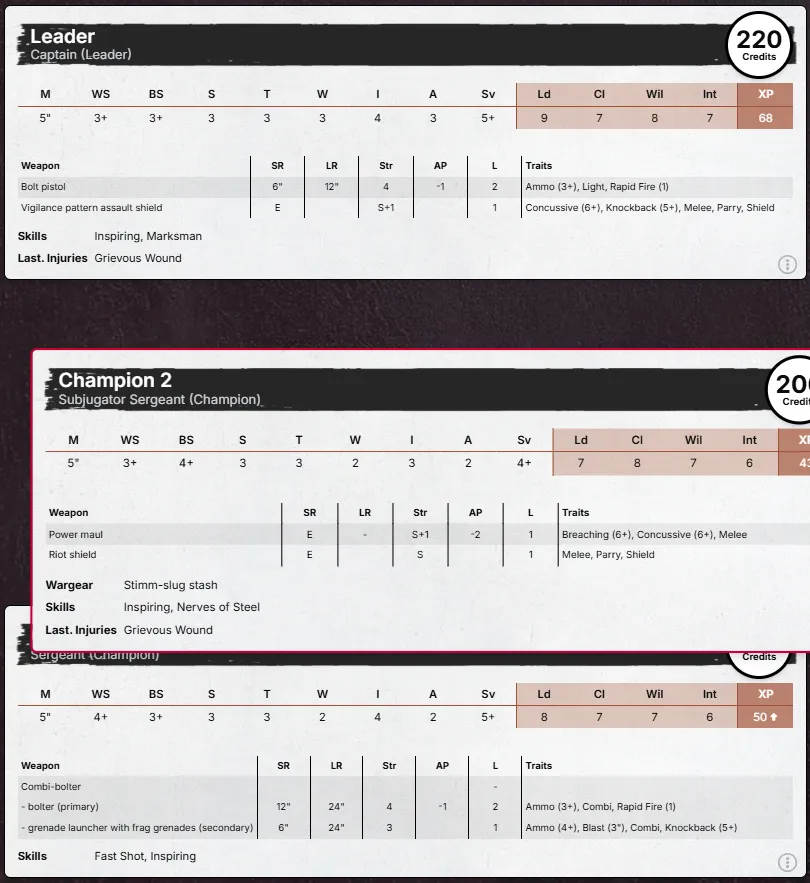
In the gang view, you can drag and drop fighter cards to reorder them by long click or long touch. If it doesn't drag, you haven't pressed long enough!
Gang Notes#
You've got access to a rich text editor to manage your gang notes on the Notes tab.
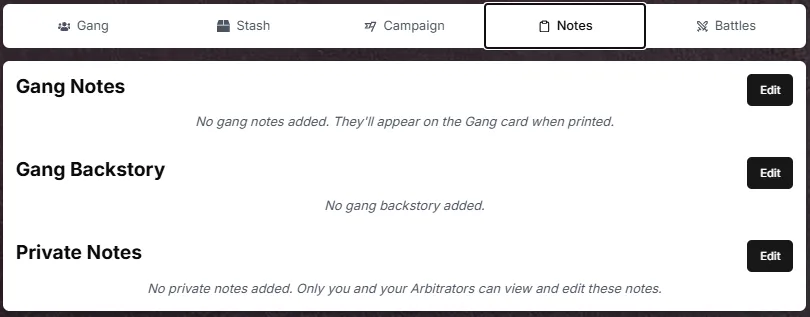
This also provides a space to write down your elaborate gang background story!
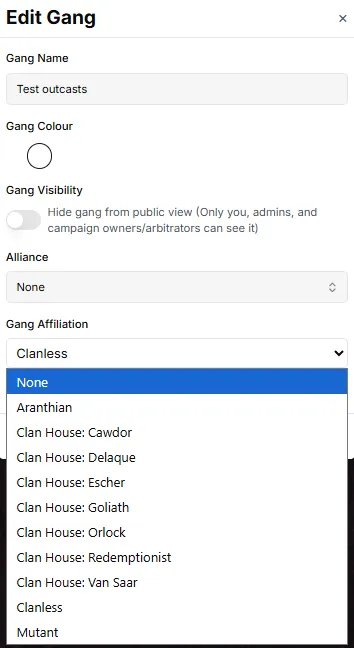
Outcasts: Gang Affiliation#
Outcast Affiliation is a setting that is determined for the whole gang, hence, it's available in the Edit Gang window.
Venetors: Gang Affiliation & Skill Access#
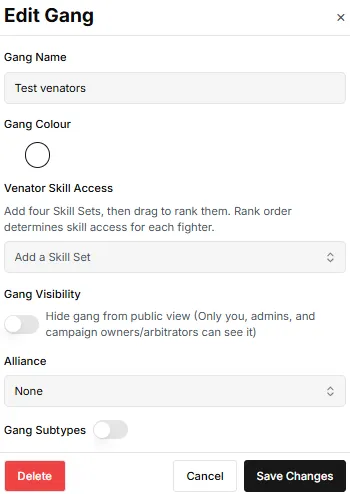
Venators fighters can have their Gang Legacy set up in the Edit Fighter window. Their skill access are created in the Edit Gang menu.
Campaigns#
Add a new Gang/Player to a campaign#
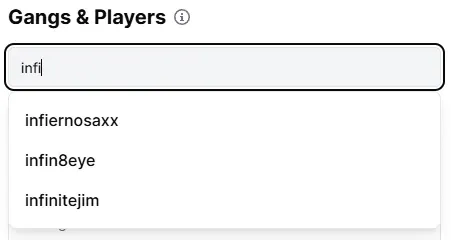
To add a gang to a campaign, first add the gang owner as a player. You can then select from their available gangs. Repeat the process to add more gangs from the same player. You can also add yourself several times as a user if you as the arbitrator are playing with several gangs in your campaign.
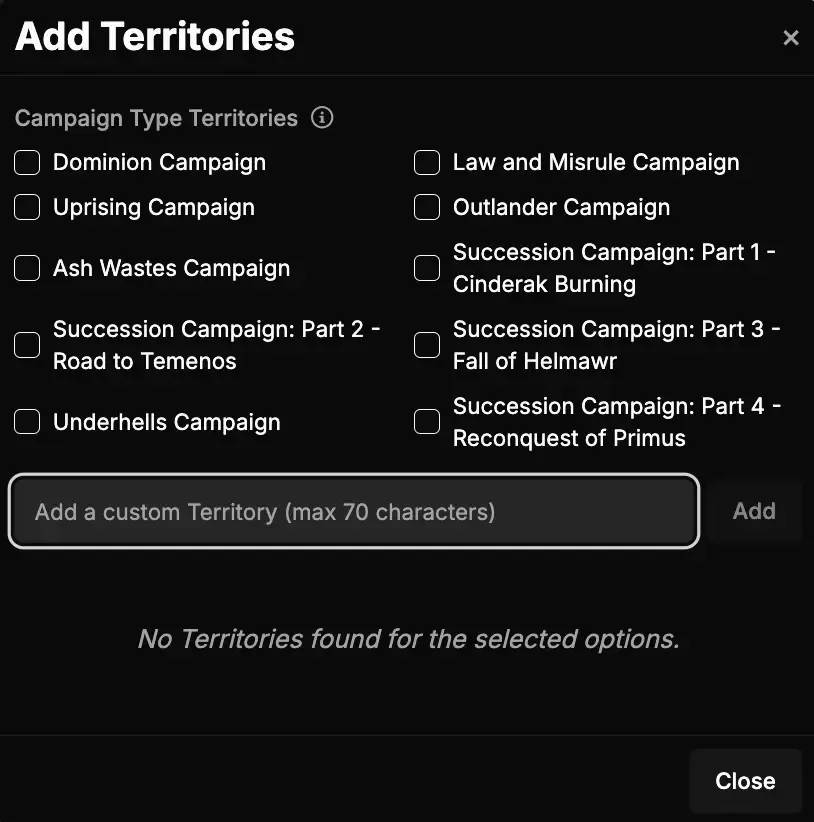
Add a custom territory to a campaign#
Open your campaign, go to the Territories tab, and click Add. Then, enter the territory name and click on Add again.
Connect Discord Bot#
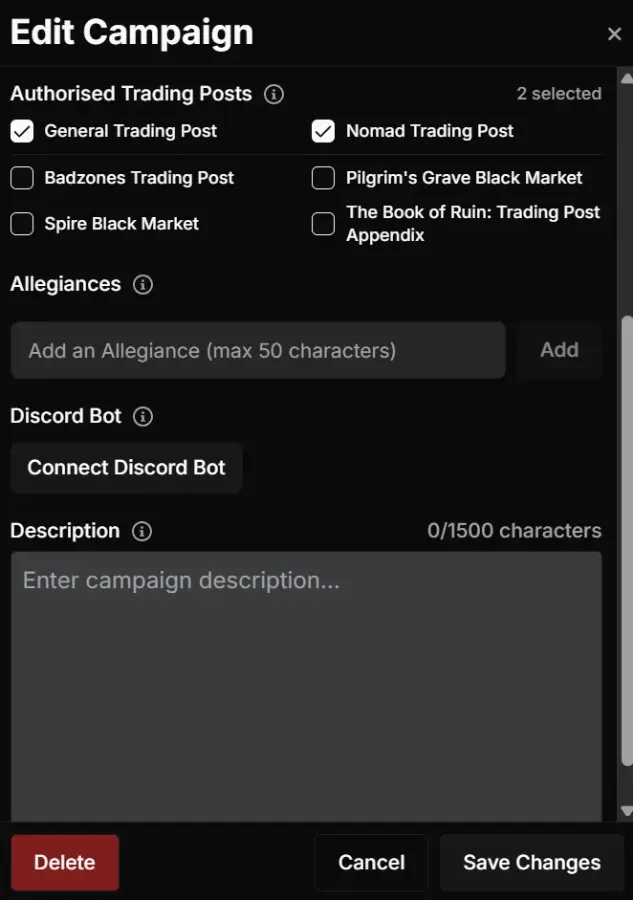
On the campaign main page, click the Edit button. In the Edit Campaign menu, scroll down and click Connect Discord Bot, then follow the instructions shown in the pop up window.
Change a user's role in a campaign#
On the campaign main page, click the user's avatar in the Gangs & Players table to open the Change Player Role menu.
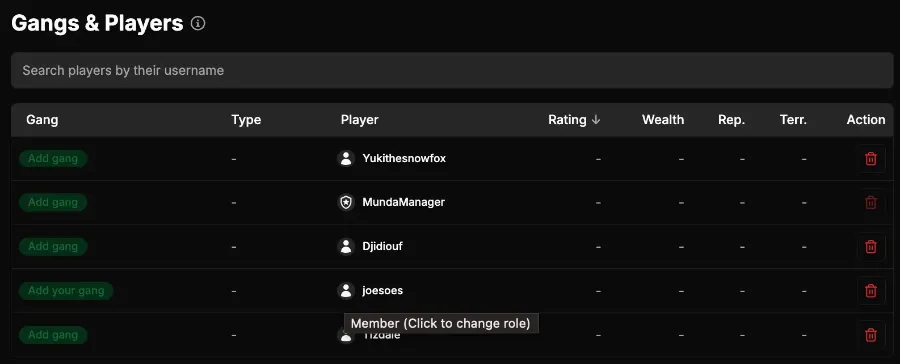
Then confirm the change by clicking the Change Role button.
Challenges#
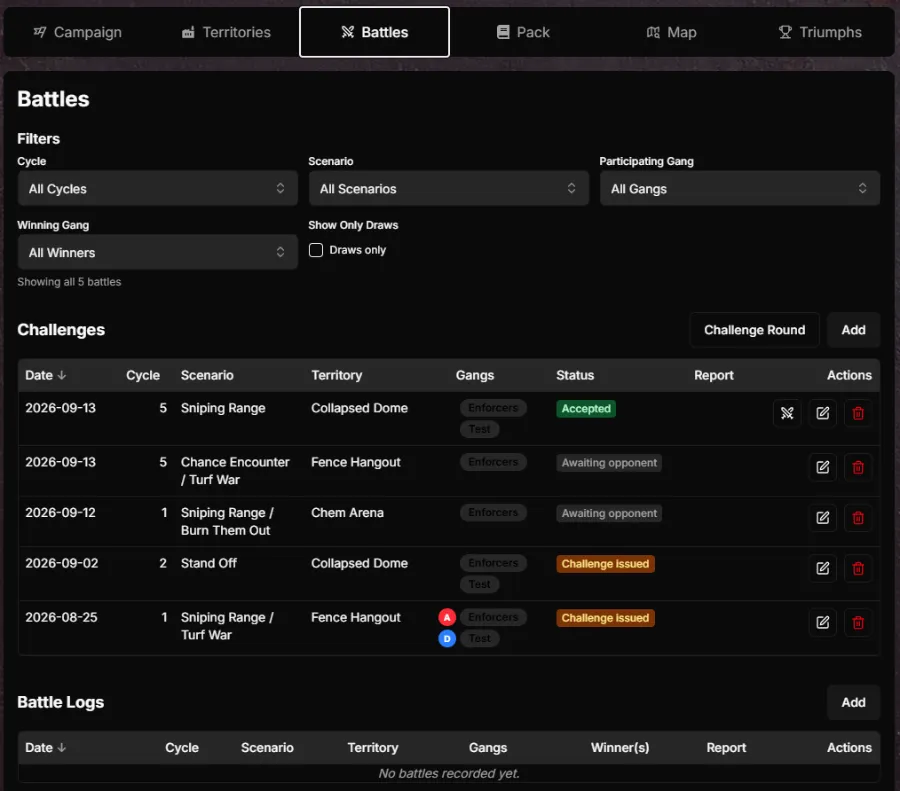
In the Battles tab, an arbitrator or the owner of a campaign can create a round of challenges by clicking the Challenge Round button. This opens a menu that lets you manage the challenges for the upcoming cycle.
Coming Soon#
More information in the user guide is coming soon. Switch to N23 for the current guide, or check back later for edition-specific instructions.